Skip to content

Empmatch: a job-matching app with two sides

A two-sided job-matching app: 66 screens for job seekers and employers on phone and desktop web, designed and built full stack in under 6 months.

Empmatch

The engagement

Client
Empmatch
Industry
Recruiting and job search
Year
To follow
Duration
Under 6 months
Delivered
66 screens, phone and desktop web, a job-seeker side and an employer side, built full stack
Stack
To follow
Role
Full-stack development: design and build of the mobile app and web app

Empmatch is a job-matching app with two sides. A job seeker swipes on one job card at a time; an employer posts jobs and sends position details to the people who match. Plainbuilt designed and built it full stack and delivered it in under 6 months: 66 screens across the seeker side, the employer side and a desktop web version. The design rests on one rule: a match needs a yes from both sides.

Who is Empmatch for?

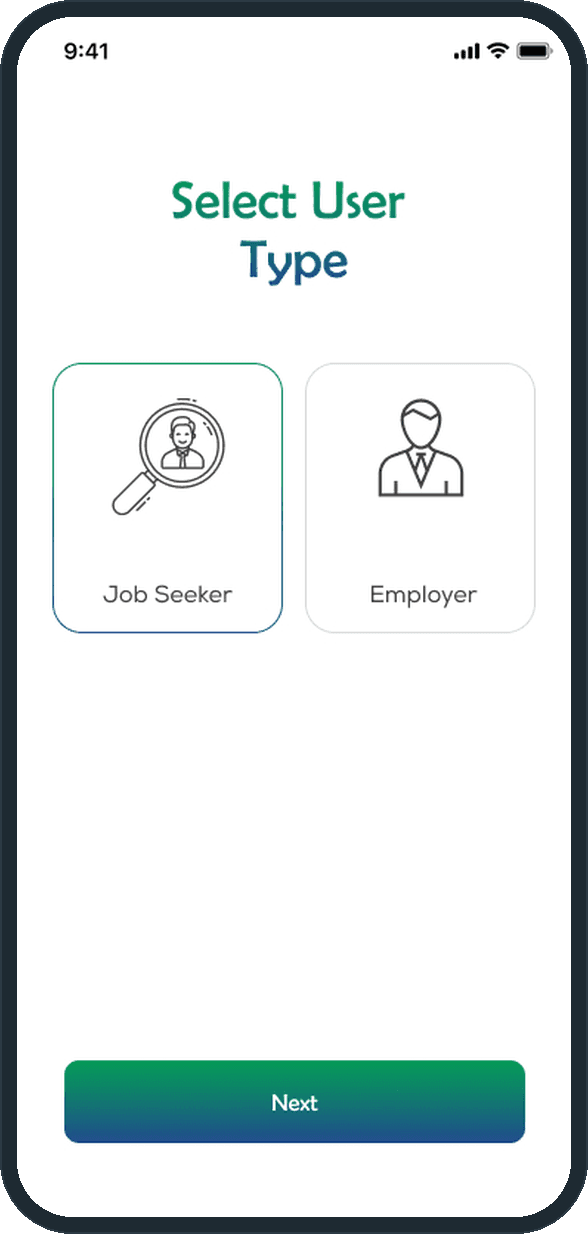
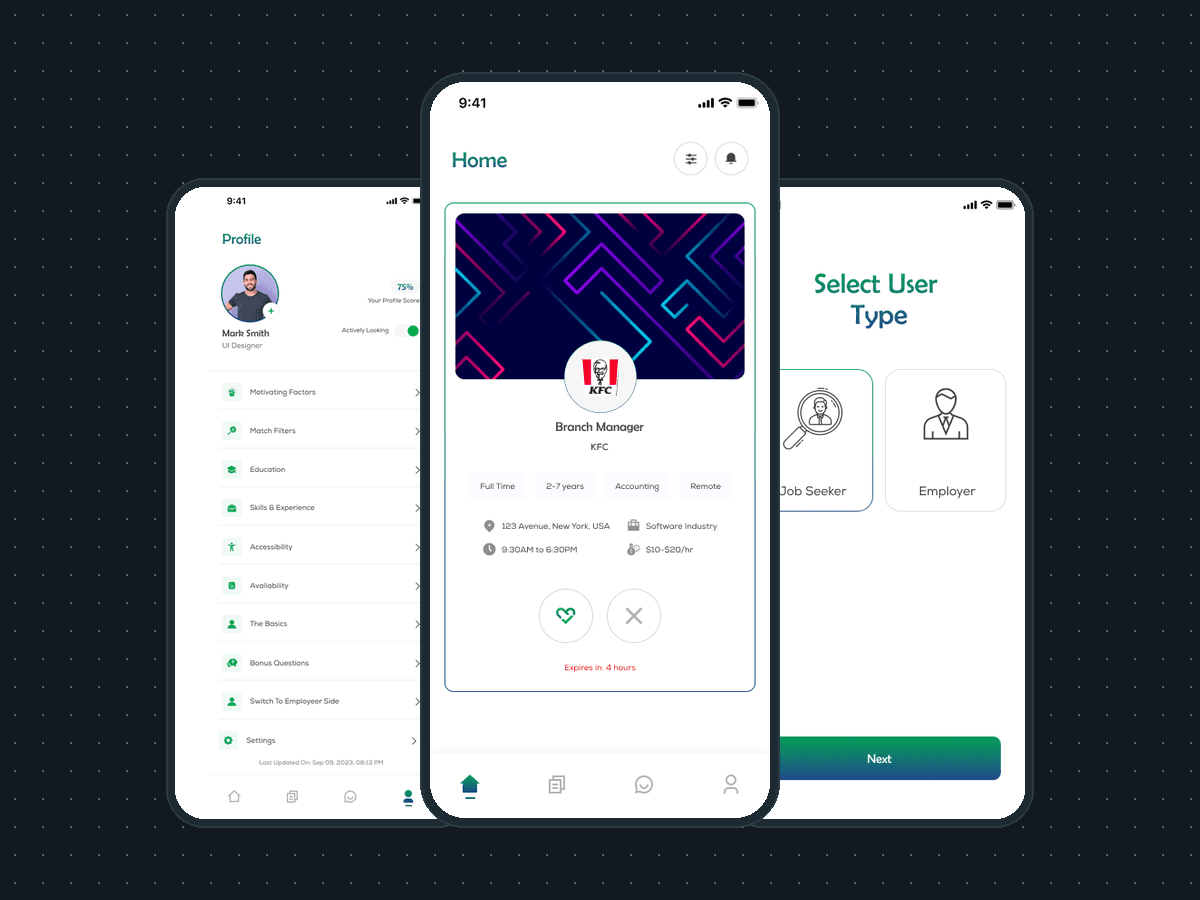
Two crowds. On one side, people looking for work: the onboarding calls the app "Your personal assistant for finding a better job" and promises "One Application... That's It. Then we get to work finding you potential matches that fit what you are looking for." On the other, employers: their onboarding calls it "The tool to minimize time and effort spent on recruiting". Select User Type asks which one you are at sign-up, and the seeker's profile carries a Switch To Employer Side row, so one account can work both sides.

What did Plainbuilt build?

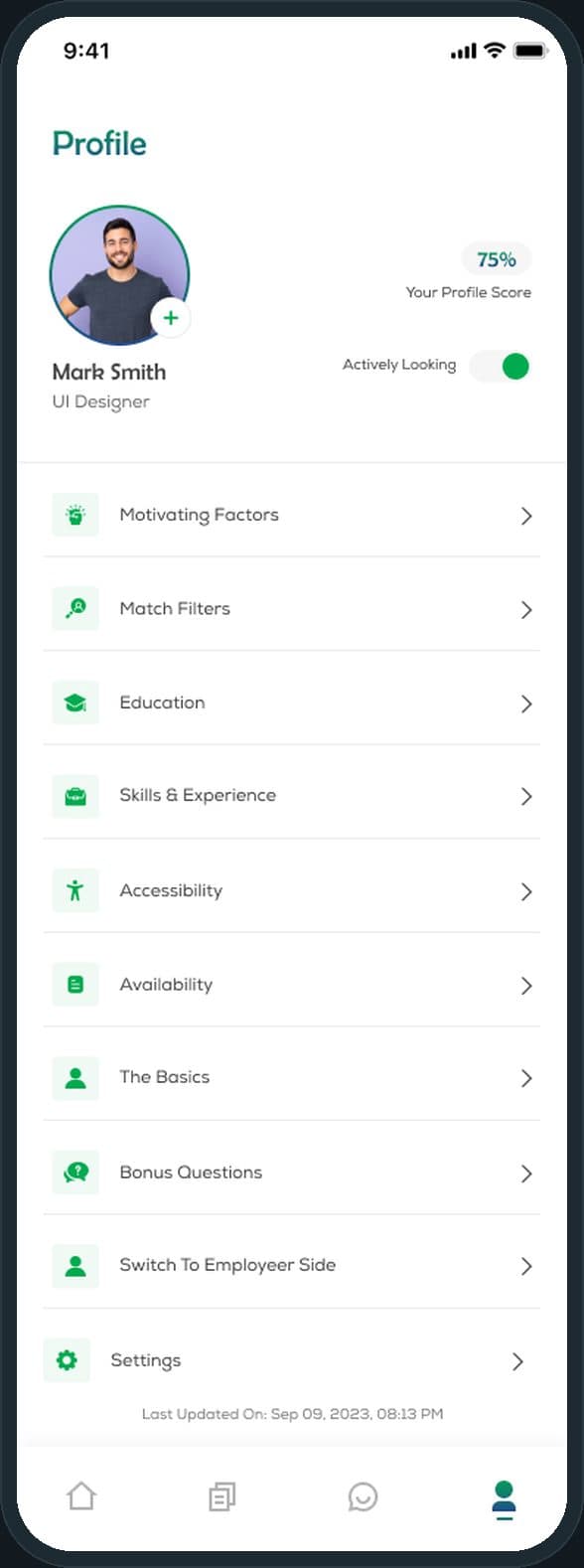
The seeker side: splash, welcome and three onboarding pages; sign in with email, Google or Apple; sign up, password reset and verification; a location permission screen; the swipe home in its rest, yes and no states; the match screen and a no-jobs state; job details with a Details tab and an About Company tab; a Successful Matches list with Proposal Received and Matched statuses; accept or reject an offer; the filter panel; messages and a conversation; notifications; the profile with its eight questionnaire sections, each with a view screen and an edit screen, and a completion page; and settings for the password, a blocked list, hidden employers, hiding the profile, FAQ, help and support, the privacy policy and the terms of use.

The employer side: its own splash, welcome and onboarding; sign in and sign up; an empty jobs state; the Jobs list with search and a per-post menu to duplicate, edit or delete; About the Business, Contact Information and Edit Company Details; About the Job and Job Requirements, which covers availability, language, education, license, experience, attributes, computer and skill requirements with a certification checkbox; Position Details; messages; and the profile and company profile.

The web: the seeker's home and job detail on desktop, and for employers a stepped Company Details, About the Job and About the Business flow with a contact panel.

What does the matching flow look like?

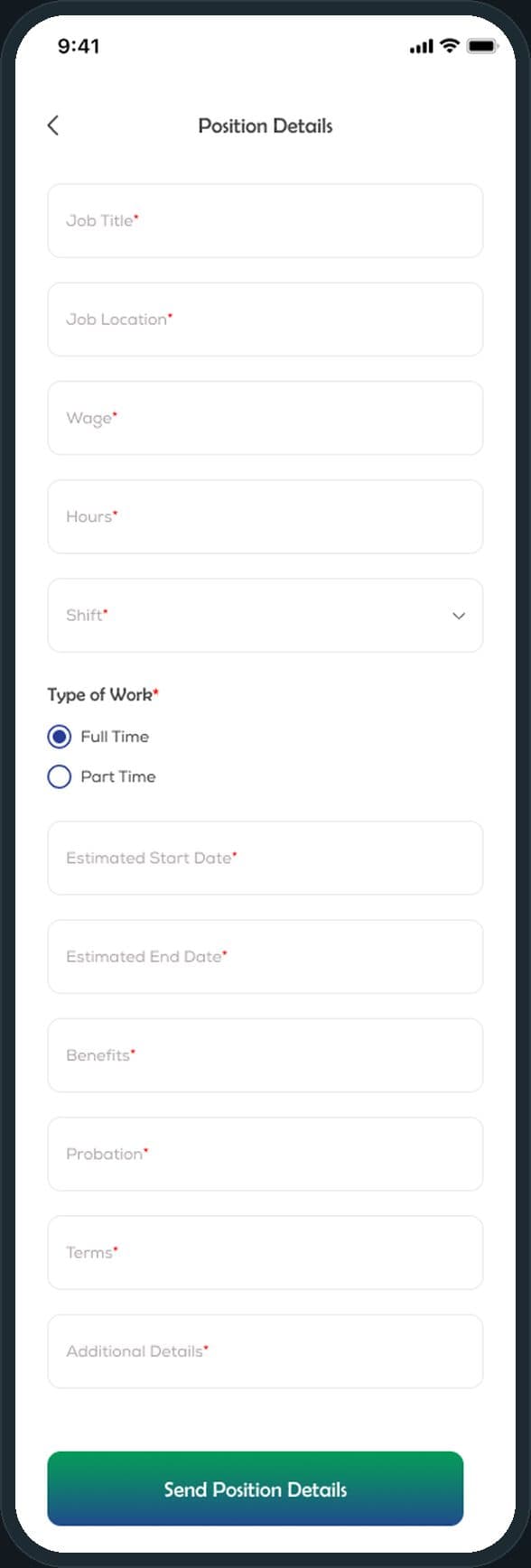
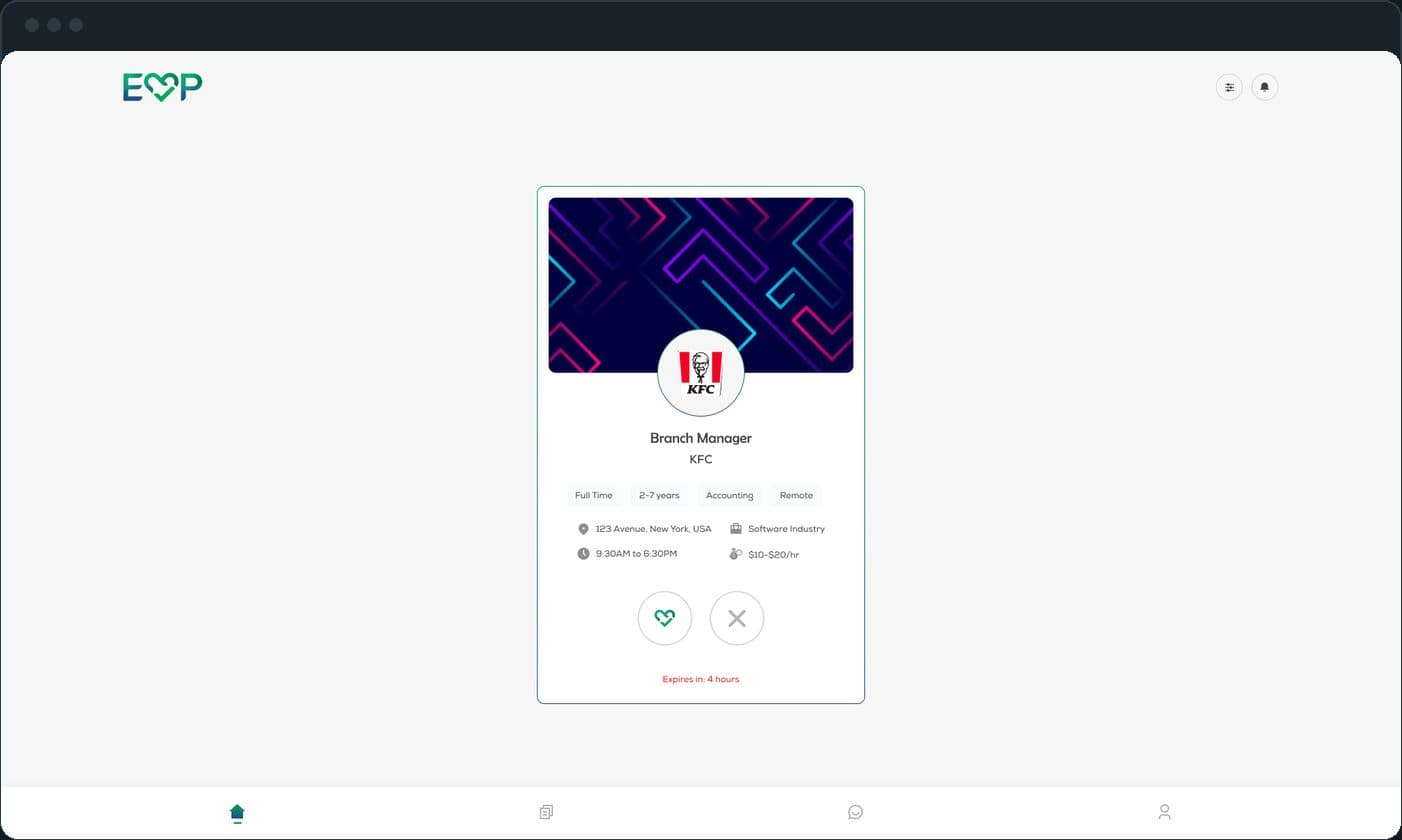
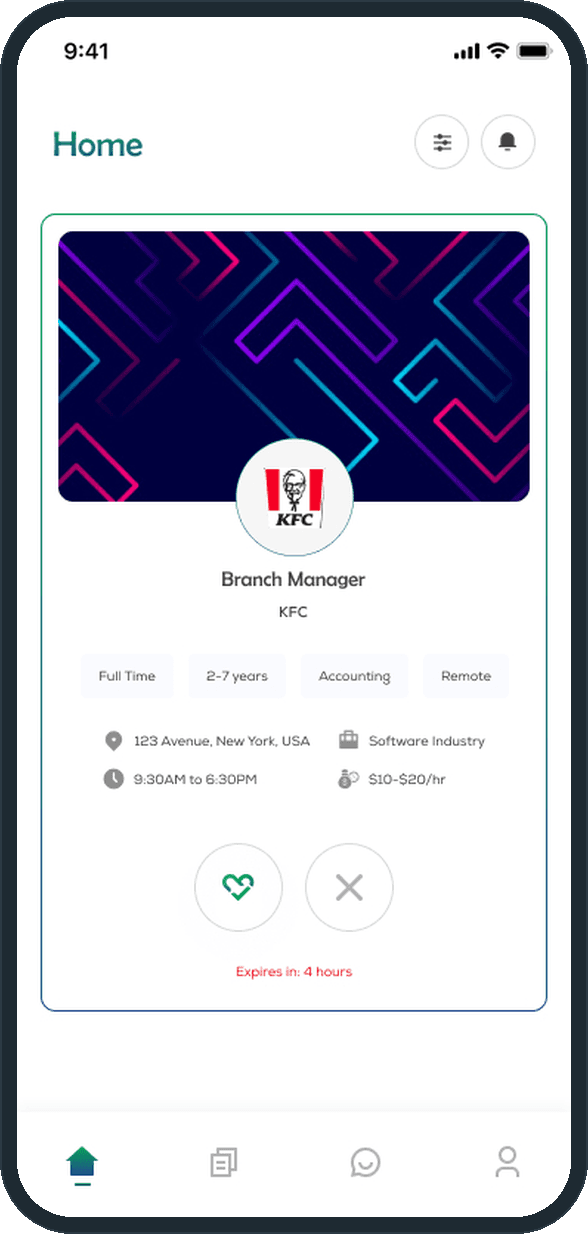
One card. The role, the employer, four tags (type, experience, field, remote), the address, the hours and the hourly range, then a heart and an X. Under the buttons a red line counts the card down: Expires in: 4 hours. A heart from both sides opens the match screen, and the match moves to the Successful Matches list with its tags for remote, full time and years of experience. The employer then fills Position Details (wage, hours, shift, dates, benefits, probation, terms) and sends it; the seeker accepts or rejects it in the app.

Why one card at a time?

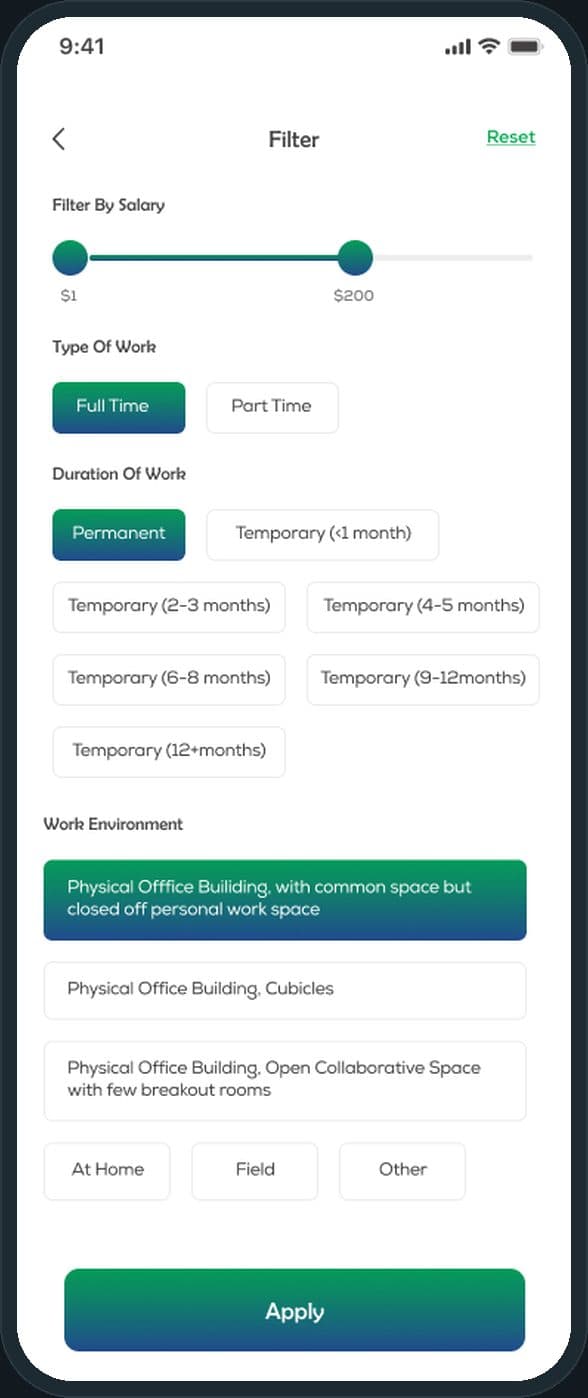
Because the questionnaire has already done the sorting. The seeker answers eight sections once, watches the percent climb at the foot of each form, and sees a profile score on the profile page; the filter panel narrows what is left by salary, type, duration and work environment. What reaches the home screen is one job that fits the answers, with enough on the card to decide and no more. The heart and the X are the only two choices, and the clock under them keeps the decision from sitting.

How does a job seeker find a job on Empmatch?

One job card at a time: the role, the employer, tags for type, experience, field and remote, the address, the hours and the hourly range. A heart says yes, an X says no, and a red line under the two buttons counts the card down (Expires in: 4 hours). When both sides say yes, a match screen joins the seeker's photo and the employer's logo with the heart, and the match lists under Successful Matches as Proposal Received or Matched.
  • Empmatch: How does a job seeker find a job on Empmatch?

How does the app know what to show you?

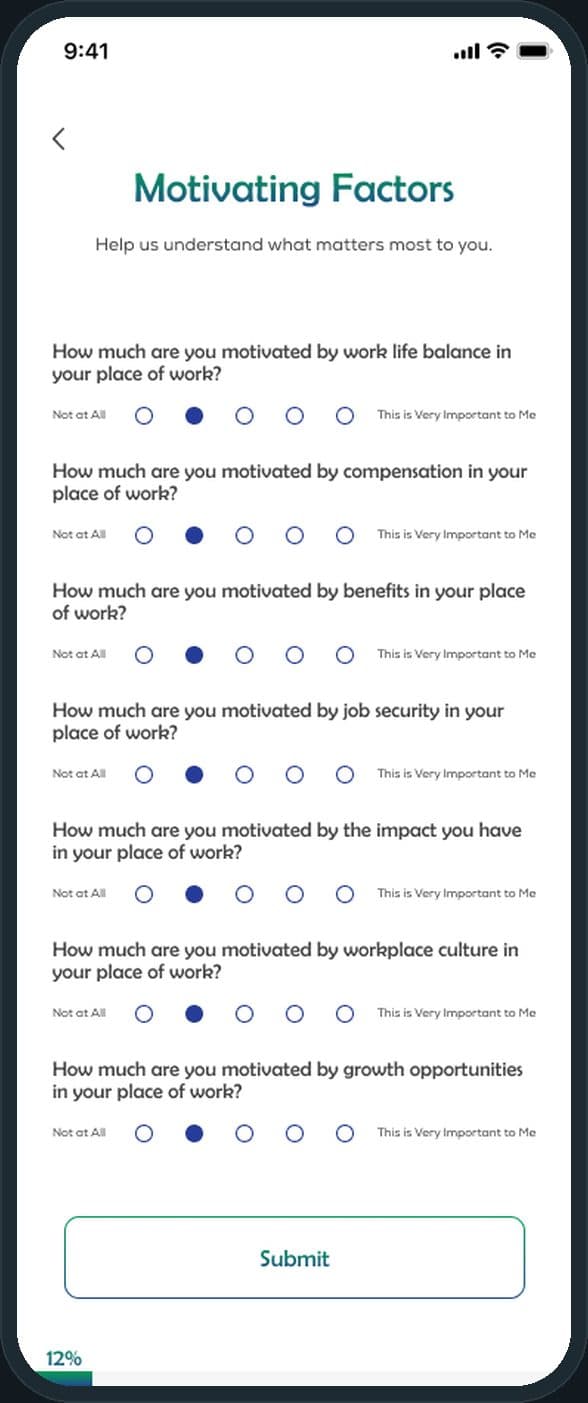
The seeker answers an eight-part questionnaire once. Motivating Factors asks seven questions on a five-point scale, from work-life balance to growth opportunities; the other sections cover match filters, education, skills and experience, accessibility, availability by weekday and hour, the basics and bonus questions. A percent at the foot of each form shows how far along the whole is (12% after Motivating Factors), and a filter panel on the home screen narrows the cards by salary, full time or part time, duration and work environment.

Empmatch: How does the app know what to show you?

What does the employer side do?

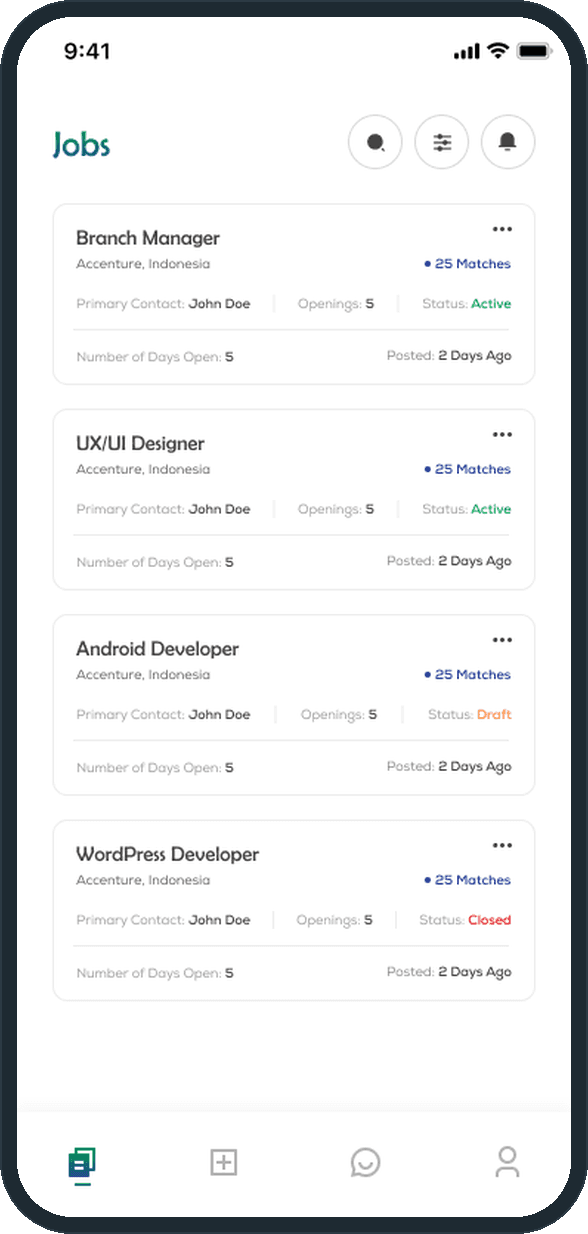
Select User Type asks Job Seeker or Employer at sign-up, and employers land on a Jobs list. Each post shows the title, the company, the match count, the primary contact, the openings, a status of Active, Draft or Closed, the days open and the posted date, with search and filter at the top and a per-post menu to duplicate, edit or delete. A new job is built from three forms, About the Business, About the Job and Job Requirements, the last covering availability, language, education, license, experience, attributes, computer and skill requirements.

  • Empmatch: What does the employer side do?
  • Empmatch: What does the employer side do?

How does an employer make an offer?

After a match, the employer fills Position Details: job title, location, wage, hours, shift, full time or part time, estimated start and end dates, benefits, probation, terms and additional details, every field required. Send Position Details puts the offer in front of the seeker, who accepts or rejects it in the app; until then the match reads Proposal Received.

Empmatch: How does an employer make an offer?

Does it run on the web too?

Yes. A desktop web version shows the seeker the same swipe card under the EMP wordmark, with the same filter and bell buttons and the same four-tab bar, plus the job detail and About Company pages. Employers get a stepped flow on the web: Company Details, About the Job and About the Business, with a Contact Information panel.

Empmatch: Does it run on the web too?

The decisions

  • One card, two buttons.

    The home screen shows one job, a heart and an X. There is no list to scroll and no apply button: the seeker decides on this job, then sees the next one.

  • The questionnaire does the searching.

    Eight sections answered once, with a percent at the foot of every form and a profile score on the profile page. The app matches from the answers, so the seeker's daily work is a yes or a no, not a search.

  • Every card has a clock.

    Each job card carries an expiry line in red under the two buttons. A card gets a yes or a no before it expires, so an employer's openings do not sit under cards nobody decided on.

  • One account, two sides.

    Select User Type asks Job Seeker or Employer at sign-up, and the seeker's profile carries Switch To Employer Side. Both sides use the same four-tab bar, the same green-to-navy buttons and the same white cards, on the phone and on the web.

What was the outcome?

Built and delivered in under 6 months

One outcome per item, dated, or not disclosed: never an estimate.

More screens

  • Empmatch
  • Empmatch

Common questions

Did Plainbuilt build Empmatch?

Yes. Plainbuilt designed and built it full stack and delivered it in under 6 months.

Can Plainbuilt build a two-sided app like Empmatch?

Yes. The same shape of engagement: a working session to scope both sides, then the screens, the build and the delivery. Book a working session to scope one.