Skip to content

Tripi: a booking app with a business side

Tripi, an appointment-booking app: 48 iOS screens, a customer side that sends a booking request and a business side that accepts it, built in under 6 months.

Tripi

The engagement

Client
Tripi
Industry
Appointment booking for service providers
Year
To follow
Duration
Under 6 months
Delivered
48 screens, iOS, onboarding and login, browse and book, the customer's bookings, the business's requests, availability and calendar, built full stack
Stack
To follow
Role
Full-stack development: design and build of the mobile app

Tripi is an appointment-booking app with two sides in one design: the customer picks a category, a provider, the services and a half-hour slot and sends a booking request; the business sets its days, hours and services and accepts or rejects each request. Plainbuilt designed and built it full stack and delivered it in under 6 months: 48 iOS screens. The design rests on one idea: a booking is a request until the business says yes.

Who is Tripi for?

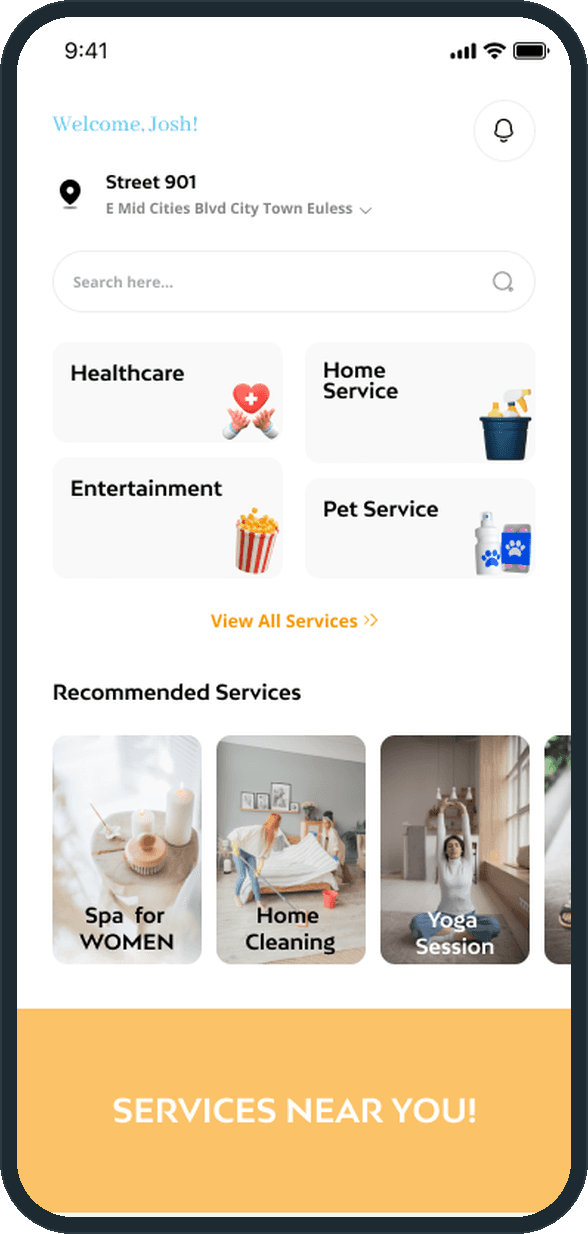
People who book services by appointment, and the providers who take those bookings. The home screen's four tiles are Healthcare, Home Service, Entertainment and Pet Service, and the Recommended Services row shows Spa for Women, Home Cleaning and Yoga Session. The onboarding puts it in the product's own words: Tripi simplifies and enhances the appointment booking process across a wide range of services. The provider on the sample screens is a salon with two massage services on its list; the same screens serve a cleaner, a clinic or a pet service.

What did Plainbuilt build?

The whole app, front to back, on both sides. For the customer: three onboarding slides, Quick Login by phone number with a 4-digit code or by email, create account, forgot and reset password, enable location and add an address on a map or by hand, the home with its categories, a category list, a provider page with a Certified badge, a rating, the address, a description, special instructions, the services with prices and the reviews, Select Services with the date and the half-hour slots, the Booking Request Sent confirmation, Bookings split into upcoming and past, a five-star Rate and Review, a chat list and thread with a location-share button, notifications, and a profile with address management, a help center, refer a friend, privacy policy, terms of service and delete account.

For the business: business details with a description, special instructions, certificates and an offsite or online setting, services added by category with a price, Business Availability, social media links, preferences, Appointments with Requests and Past Services, a request detail with the customer's contact, Mark As Completed on a booking, and a calendar with a dot on every booked day. Empty states are drawn for messages, addresses, services, requests and social links, each with a line illustration.

What does the booking look like?

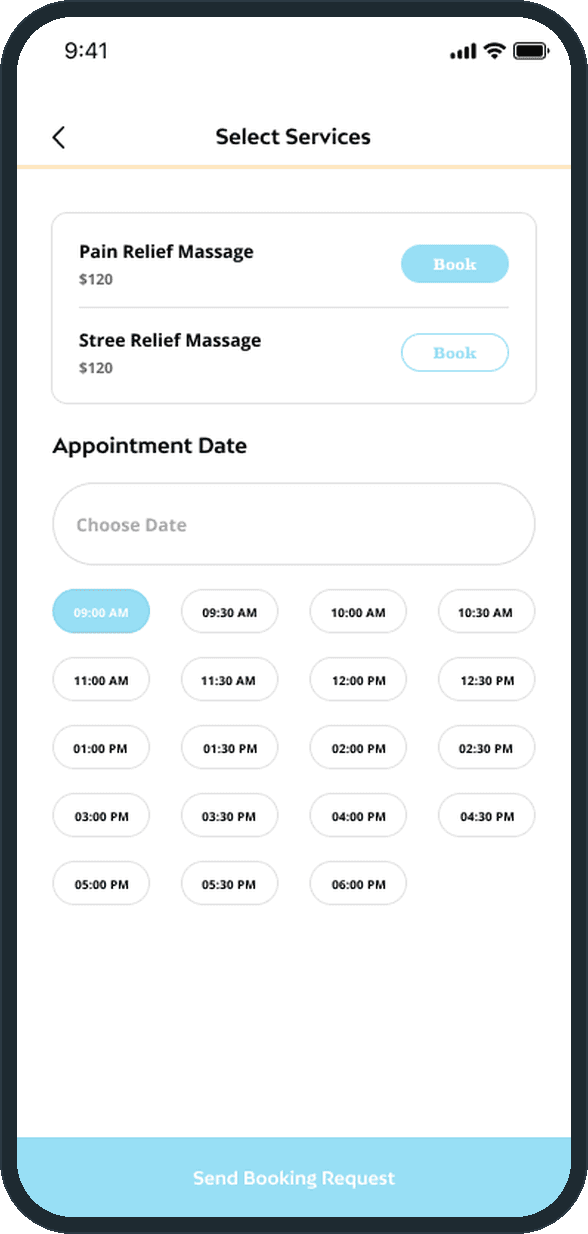
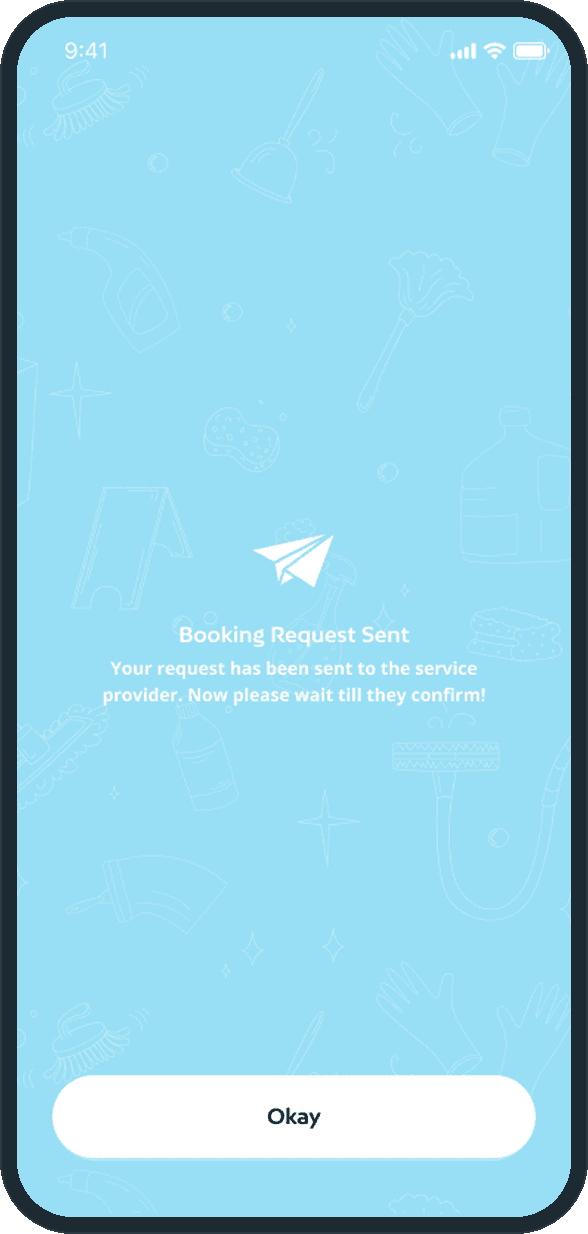
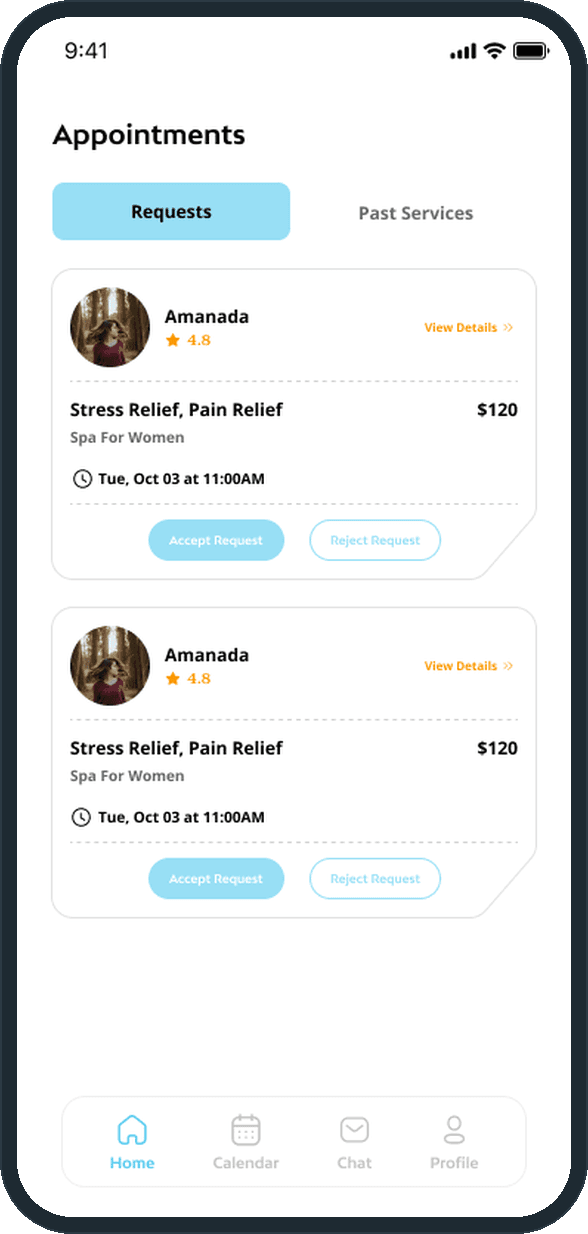
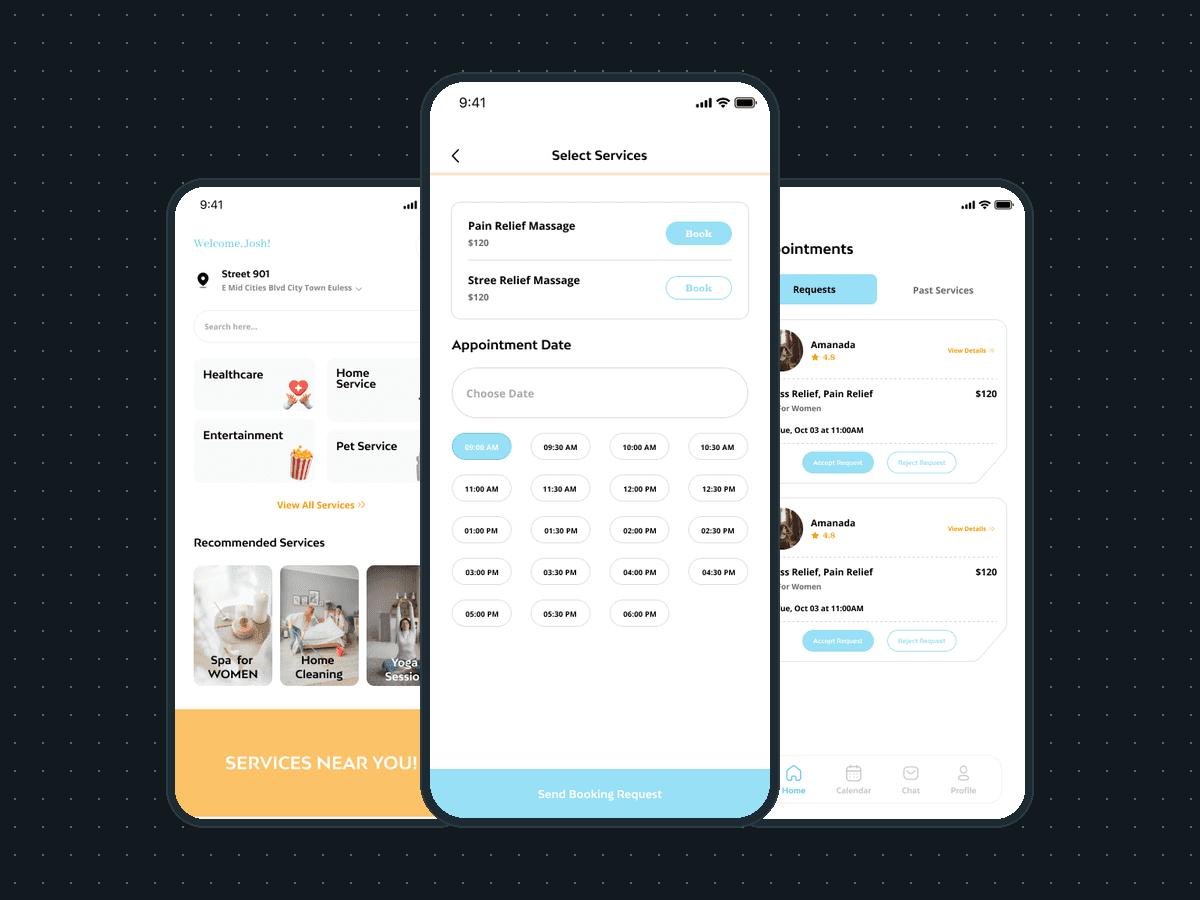
Five screens across two phones. The customer opens a provider's page and taps into Select Services: each service sits on a white card with its price and a Book button. Under Appointment Date, a Choose Date field, then the half-hour chips from 09:00 AM to 06:00 PM with the chosen one in sky blue. Send Booking Request runs the full width of the foot. The confirmation is a paper plane on a sky-blue background of line-drawn tools and brushes, with Booking Request Sent and the line that the request went to the provider. On the other phone, the request lands under Appointments as a card with the customer, the services, the price and the time, and two buttons: Accept Request and Reject Request. The customer's notification reads that the provider has accepted the request, and the booking appears under Upcoming Services with JOB TO BE COMPLETED as its first line.

Why is it a request and not a booking?

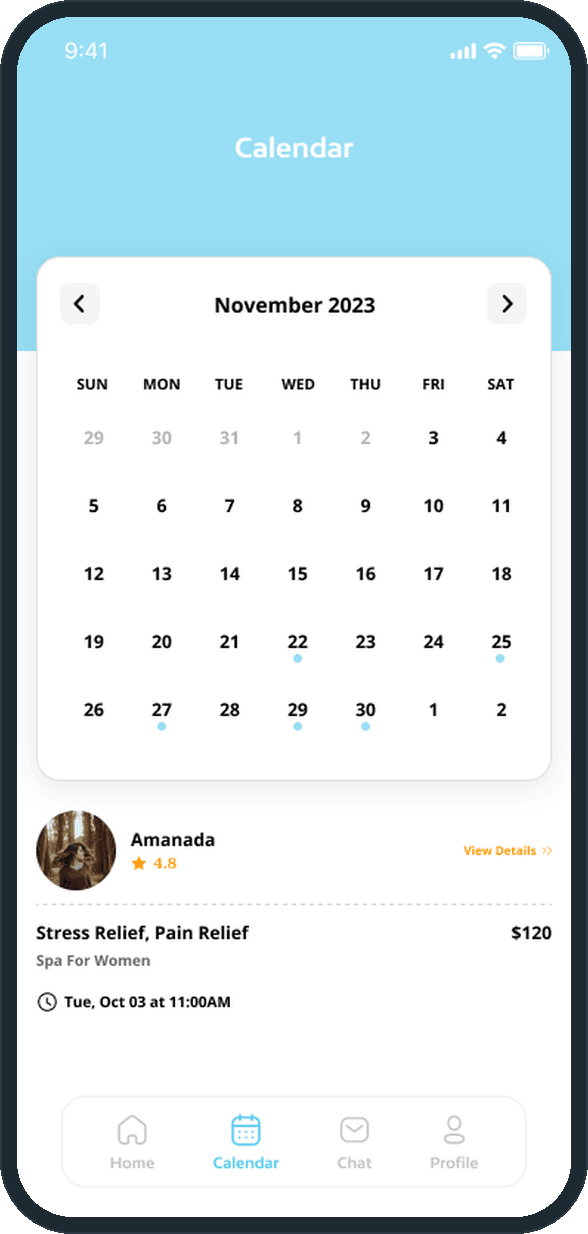
Because the provider owns the calendar. A salon, a cleaner or a tutor cannot take every slot the app could offer, so the business sets its days and its window on Business Availability, the customer picks a slot inside it, and the business still gets the last word on each request from its Appointments tab. Its Calendar tab marks the days it has said yes to with a dot and lists that day's booking under the month grid. The customer sees the same appointment under Bookings, with its state in color, and a Book Again button once the job is marked completed.

How does a customer book a service?

From a provider's page the customer opens Select Services, books the services wanted (two massage services on the sample screen, each with its price and a Book button), picks a date under Appointment Date and one of the half-hour slots from 09:00 AM to 06:00 PM, and presses Send Booking Request. The next screen is the confirmation: a paper plane on the sky-blue background, Booking Request Sent, and a line that says the request went to the service provider and to wait till they confirm. An Okay button closes it.

  • Tripi: How does a customer book a service?
  • Tripi: How does a customer book a service?

What does the business see?

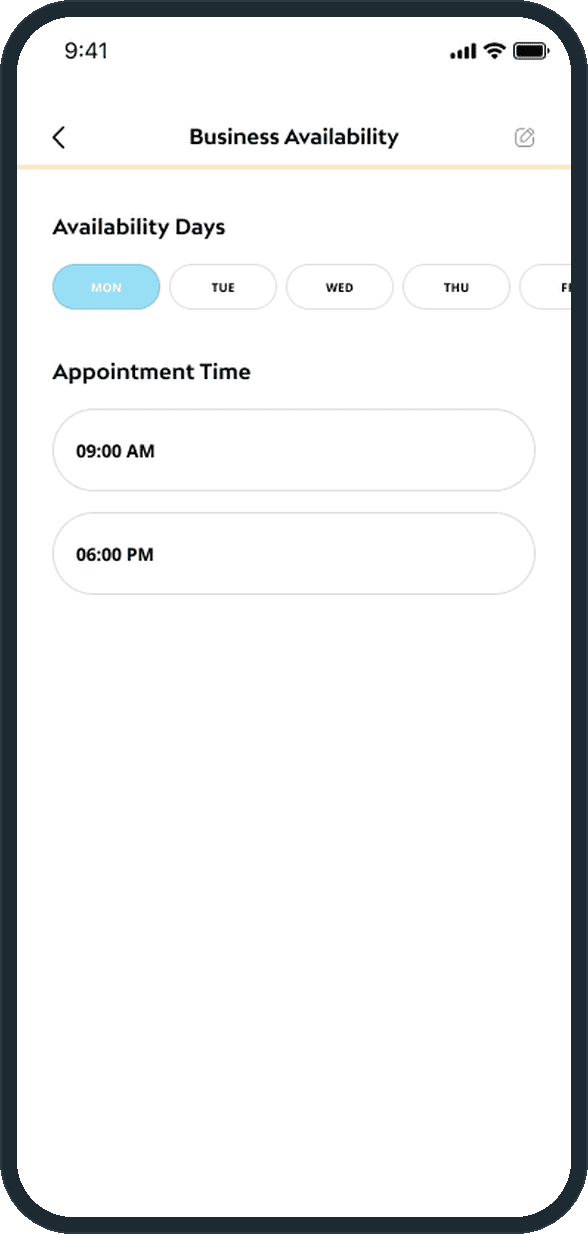
Its own side of the app. Appointments splits into Requests and Past Services; each request is a card with the customer's name, photo and rating, the services, the category, the price and the day and time, with Accept Request and Reject Request under it. Business Availability is where the provider sets the days of the week, one chip each, and the Appointment Time window, 09:00 AM to 06:00 PM, with an edit pencil in the header. The provider's tab bar is Home, Calendar, Chat and Profile.

  • Tripi: What does the business see?
  • Tripi: What does the business see?

How do both sides keep track of appointments?

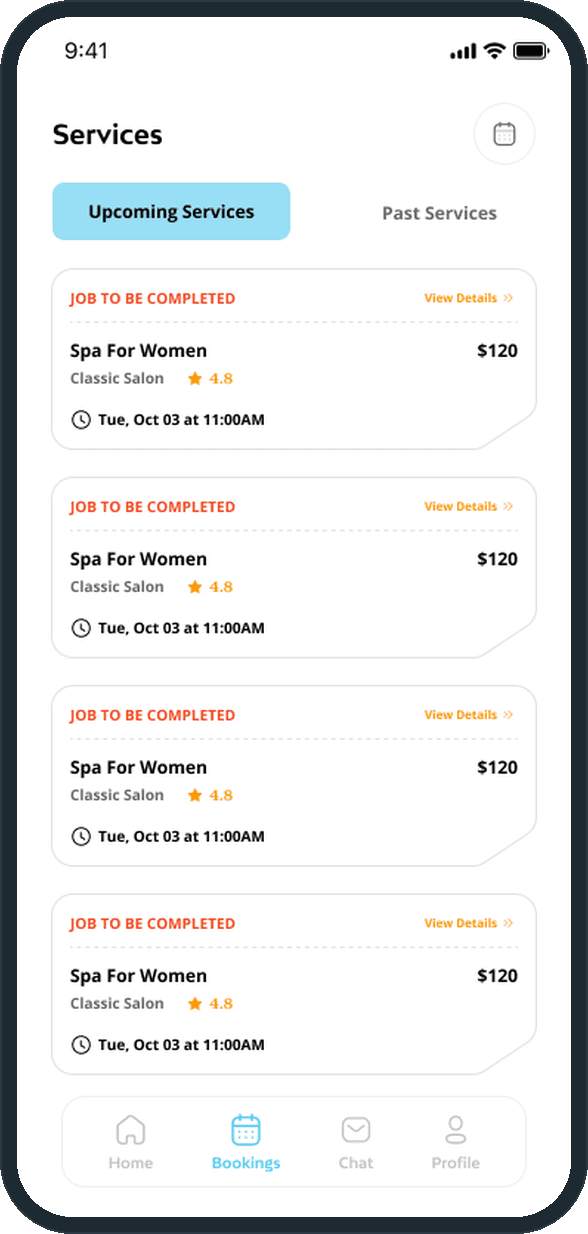
The customer's Services list splits into Upcoming Services and Past Services. Each upcoming card reads JOB TO BE COMPLETED in red, then the service, the provider with its rating, the price, the day and time and a View Details link; a past card reads JOB COMPLETED in green and adds a Book Again button. The provider's Calendar tab puts the month on a white card over the sky-blue header, marks every booked day with a dot, and lists that day's booking under the grid with the customer, the services and the time.

  • Tripi: How do both sides keep track of appointments?
  • Tripi: How do both sides keep track of appointments?

What kinds of services does Tripi cover?

The home screen opens with a greeting, the saved address and a search field, then four category tiles: Healthcare, Home Service, Entertainment and Pet Service, with View All Services under them. A Recommended Services row shows Spa for Women, Home Cleaning and Yoga Session as photo cards, and an orange Services Near You band follows.

  • Tripi: What kinds of services does Tripi cover?

The decisions

  • A booking is a request until the business says yes.

    The customer's last button is Send Booking Request, not Confirm. The confirmation screen says the request went to the provider and asks the customer to wait till they confirm, and the business gets an Accept Request and a Reject Request button on every card. A notification then tells the customer the provider has accepted.

  • The slots come from the provider's window.

    The business sets its Availability Days and an Appointment Time window, 09:00 AM to 06:00 PM. The customer picks from half-hour chips across that same window. The hours are typed once, on the provider's side, and the customer's screen repeats the span.

  • One visual system, two tab bars.

    The customer's bar is Home, Bookings, Chat and Profile; the provider's is Home, Calendar, Chat and Profile. The same sky-blue buttons, orange links and white cards run through both sides, so a booking reads the same on the phone that sends it and on the phone that accepts it.

  • The status is the first line on the card.

    Every booking card opens with its state in color: JOB TO BE COMPLETED in red, JOB COMPLETED in green. On the provider's side the booking carries a Mark As Completed button, and on the customer's side a completed job gains Book Again. The state drives what the card offers next.

What was the outcome?

Built and delivered in under 6 months

One outcome per item, dated, or not disclosed: never an estimate.

More screens

  • Tripi

Which of our services apply

Common questions

Did Plainbuilt build Tripi?

Yes. Plainbuilt designed and built it full stack and delivered it in under 6 months.

What does Tripi do?

It books appointments with service providers from a phone, with a side for each party. The customer signs in by phone number or email, saves an address, picks a category and a provider, books the services, a date and a half-hour slot, and sends a booking request. The business sets its details, its services with prices and its days and hours, accepts or rejects each request, sees its bookings on a calendar and marks a job completed. Both sides chat inside the app.